


How to Mount Your Dash Cam
Choose a clear view, a compatible mounting surface and a position your vehicle permits
Choose the position from the driver’s seat
A location near the rearview mirror can keep a front camera discreet, but it is only a starting point. Check the camera’s mounting instructions and the vehicle’s permitted attachment areas first. Sit in your normal driving position and check the view past the camera, mount and cables.
Keep the lens clear of the mirror, trim and other obstructions. Check whether you can reach the camera’s controls and remove it from the mount if needed. Do not assume that another vehicle’s installation photo establishes a suitable position for yours.
Placement rules also depend on where you drive. Our US state dash cam laws guide is a US-specific starting resource; check the applicable local requirements before fitting the camera.

Prepare the right surface for the mount
Use the camera’s compatible mount and the specified adhesive pad. Our mounts and tapes range can help you identify an accessory, but confirm the exact camera connection and surface before choosing it.
Prepare the glass using the method approved for the mount and for any tint or coating. Let the surface dry, and follow the specified application temperature, pressure and bonding time. A short press is not a universal full-strength bond, and package contents vary.
A suction mount needs its own compatible, smooth surface and locking procedure. Inspect its hold before use rather than applying adhesive instructions to it. For frequent removal or use between vehicles, compare the choices in our adhesive versus suction cup guide.

Check a live view and a saved recording
While safely parked, use the camera’s screen or supported phone app to check the actual view. Adjust the camera so the road and horizon suit that model’s instructions. A fixed road-to-sky percentage does not suit every lens, windshield or vehicle. If the app provides alignment guides, use them with the camera manual.
For a rear camera, check the actual rear-window view and attachment surface, including trim, heating lines and coatings. Confirm that its lens can see clearly and that opening the hatch or moving vehicle parts will not pull its cable. Save and inspect a short recording from each channel before considering the position finished.
Keep clear of the vehicle’s cameras and sensors
Vehicle camera restrictions take priority over a convenient dash cam position. Subaru’s current EyeSight guidance recommends windshield corners and prohibits accessories in the illustrated shaded area. Use the instructions for the exact year and model; do not transfer those corner locations to another vehicle.
If your car has Toyota Safety Sense, Hyundai SmartSense, Honda Sensing, Mazda i-Activsense or another driver-assistance system, check its own restricted areas and accessory instructions. A dash cam, cable or film must not block an OEM camera or sensor. Moving the camera a little does not by itself establish that the system will operate normally.
Ask the vehicle maker or a qualified installer when the permitted area is unclear. Avoid routing cables through an airbag deployment path or forcing trim to hide them.

Check black dots, texture and the lens view separately
The black-dot or dot-matrix area is often called the frit. Treat the mounting surface and the lens view as two separate checks. The lens needs a clear view of its intended scene; the mount or film also needs a surface its maker permits.
A textured area can prevent a suction cup from sealing. Do not assume that adhesive or static film will hold on every dotted, coated or tinted surface either. Check the exact glass and accessory instructions. Check the inward view of a cabin-facing camera. For a road-facing camera, keep the lens clear of the dotted area.

Plan removal before attaching the adhesive
A compatible static windshield film can sit between the glass and an adhesive mount. It is not a replacement for the mount’s adhesive pad. Follow the specified film, glass preparation and attachment sequence, and check that the complete assembly holds securely.
Confirm compatibility before applying film over tint, a coating or a heating element. For a rental or shared vehicle, get permission for the attachment method and removal process. Film does not guarantee residue-free or damage-free removal on every surface.
When changing cameras, first check whether the camera detaches while its compatible mount stays on the glass. For the pad, film or residue, use the method approved for that glass and coating. Do not force a sharp tool against the glass, lens or trim. Ask for help if you cannot identify a suitable removal method.

Keep the glass and the camera lens clear
Check the glass in front of the lens and clean the lens using the camera maker’s approved method. These are different surfaces, and a windshield accessory does not replace lens cleaning.
BlackboxMyCar Aqua Shield is a film for the windshield’s exterior. Before applying it, check its instructions, the available glass area and how that area interacts with the wipers or any existing coating. It is not a film to place directly on the camera lens, and its size does not establish a fit for every front-camera installation.
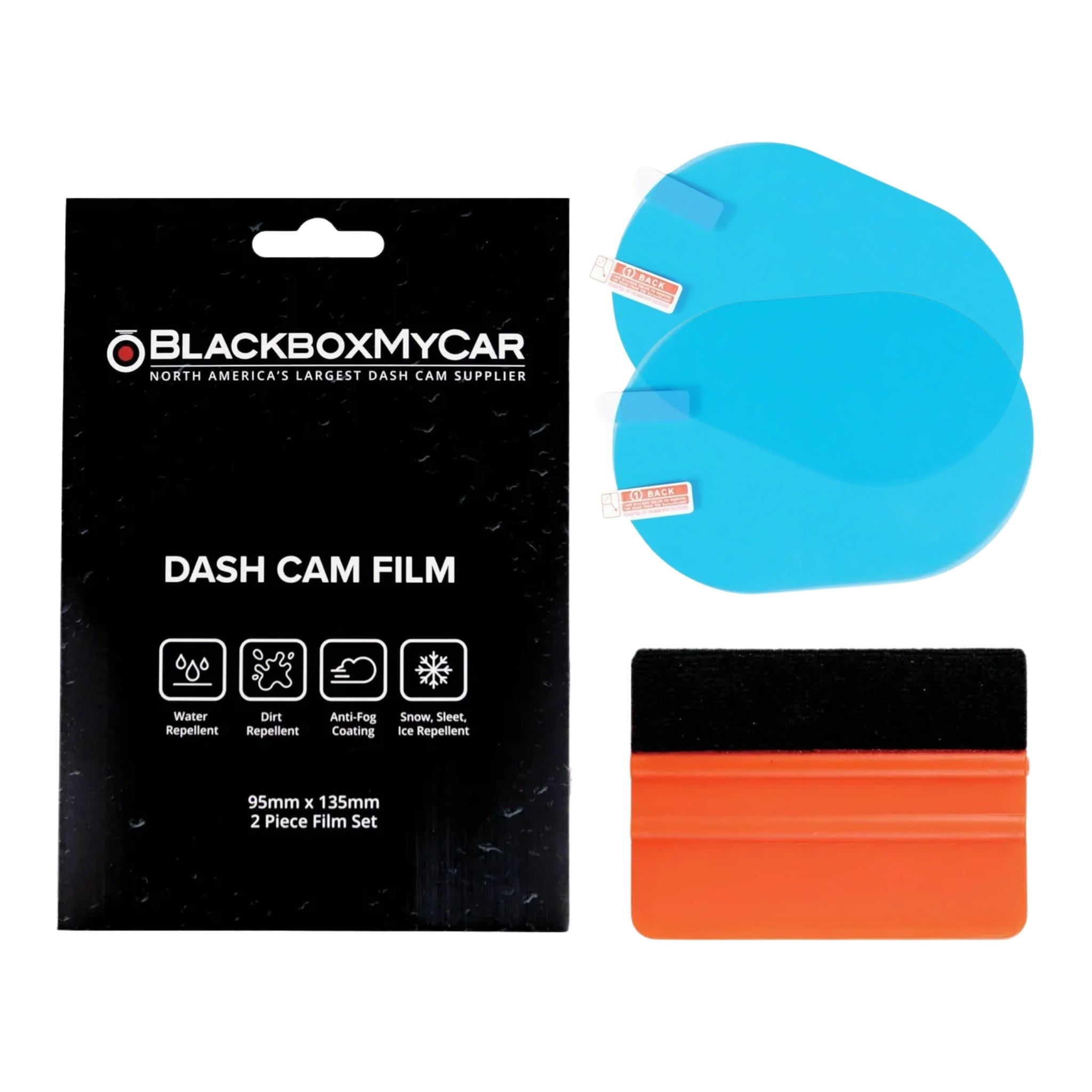
Check the accessory against the finished camera view
If you are considering Aqua Shield, compare the intended film position with the actual camera view before application. Follow its exterior-glass fitting instructions and keep any vehicle sensor restrictions clear.
Rain and dust can still affect visibility after fitting the accessory. After any installation or cleaning step, check the saved view again. Keep the mount, windshield film and camera lens as separate parts of that check.
Find a mounting setup that works for your vehicle
Tell our team your camera model, vehicle year and model, the glass or film surface, and whether you need to remove the camera regularly. Include the proposed position and any driver-assistance camera restrictions. We can help you identify the right accessory and the next checks before you attach it.
Get help with dash cam mounting