3 Ways To View Dash Cam Footage
Our advice on finding, copying and keeping recordings with your screen, phone or card reader
Save The Recording Before It Is Overwritten
At BlackboxMyCar, we help you get to the footage you need for peace of mind on and off the road. Park safely before operating the camera or your phone. Note the approximate event time, then check the camera clock and relevant folders and channels. Loop recording can replace older clips, so copy the footage you need promptly.
If your camera has an event or lock control, use it to protect the clip. Our advice is to make a separate copy too: a locked file still lives on the same card. Include the relevant front, rear or interior files and the clips just before and after the event.
Before removing a card, stop recording and power the camera off as its manual directs. Keep the original files and filenames. Make edits, trims or compressed sharing copies separately.
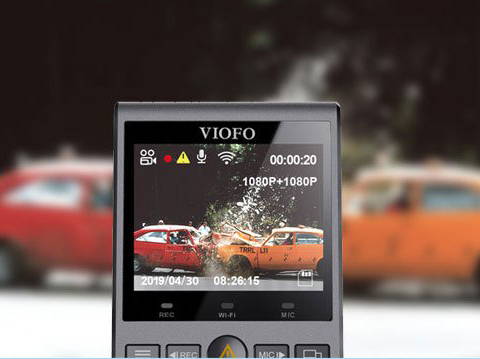
1. Review Footage On The Camera Screen
For a quick way to find the right recording, start with the built-in screen if your camera has one. With a screenless model, use a phone or compatible card reader. Follow your exact model’s playback instructions; the pictured cameras are examples.
- While parked, stop recording if the model requires it before opening playback.
- Open the recorded-file or playback menu and choose the relevant normal, event or parking folder. Menu names vary.
- Select the time and camera channel you need. Play the clip and note its filename.
- Protect the clip if supported, then save a separate copy with a phone or card reader. Resume recording after leaving playback and check a new saved clip.
We suggest using the small screen to locate the clip, then inspecting the original file on a larger display when fine detail matters.
If you are choosing a current VIOFO camera, compare the A119M Pro. The legacy A129 Plus is a separate model; follow its own manual for its controls.
2. Download With The Camera's Mobile App
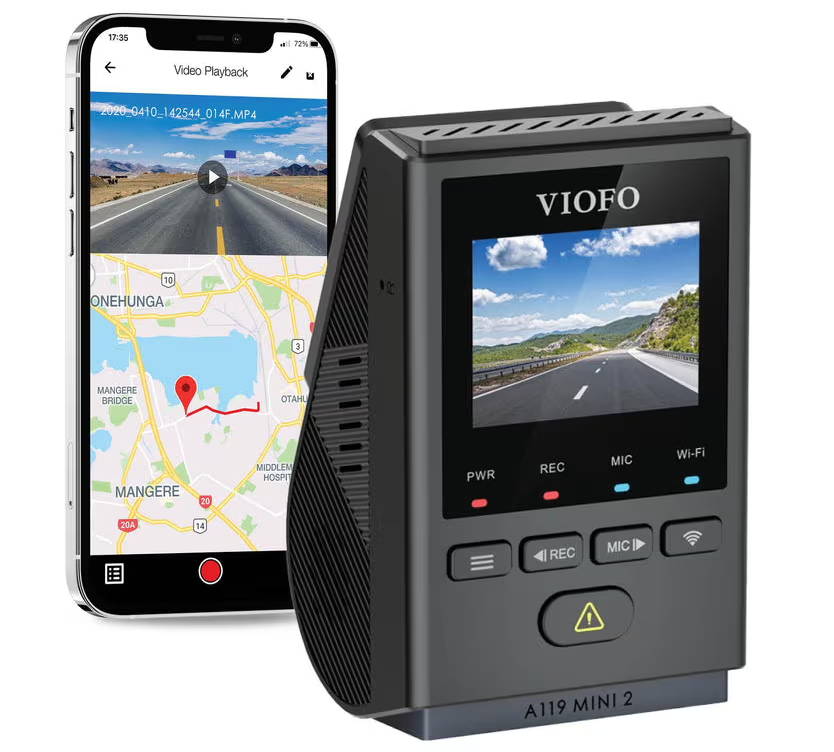
For nearby phone access, choose the app specified for your exact camera model and generation. A compatible phone can connect over local Wi-Fi, which does not by itself provide internet or remote viewing. Our dash cam Wi-Fi guide explains the local connection.
- Install the app from the manufacturer's official instructions and enable the camera connection as directed. Some models use a Wi-Fi button; others use a different pairing flow.
- Connect to the correct camera network and allow the app permissions required for that connection. A VIOFO camera connection can show connected without internet.
- Open recorded files and choose the right folder, time and channel. Download the required clips rather than only playing the preview.
- Open the app's downloaded-files area and confirm the copy plays. If you need the clip in your phone's album or Files app, complete that app's export or save step.
Playing a preview does not necessarily save a file to your phone. Thinkware Dashcam Link, for example, downloads to its internal memory before a separate export saves to the phone's album. Allow the relevant storage or photo permission when prompted.
If pairing fails, we suggest checking the exact model’s instructions, password and phone permissions before trying repeated resets. iPhone and Android prompts differ. If you need another way to reach the files, consider a compatible card reader.
Remote Playback Needs A Separate Connection
Local Wi-Fi and remote viewing serve different tasks. A card reader or nearby camera app accesses local recordings. Viewing from another location needs a supported connected camera, power, an account and active internet at the vehicle, plus the required service setup.
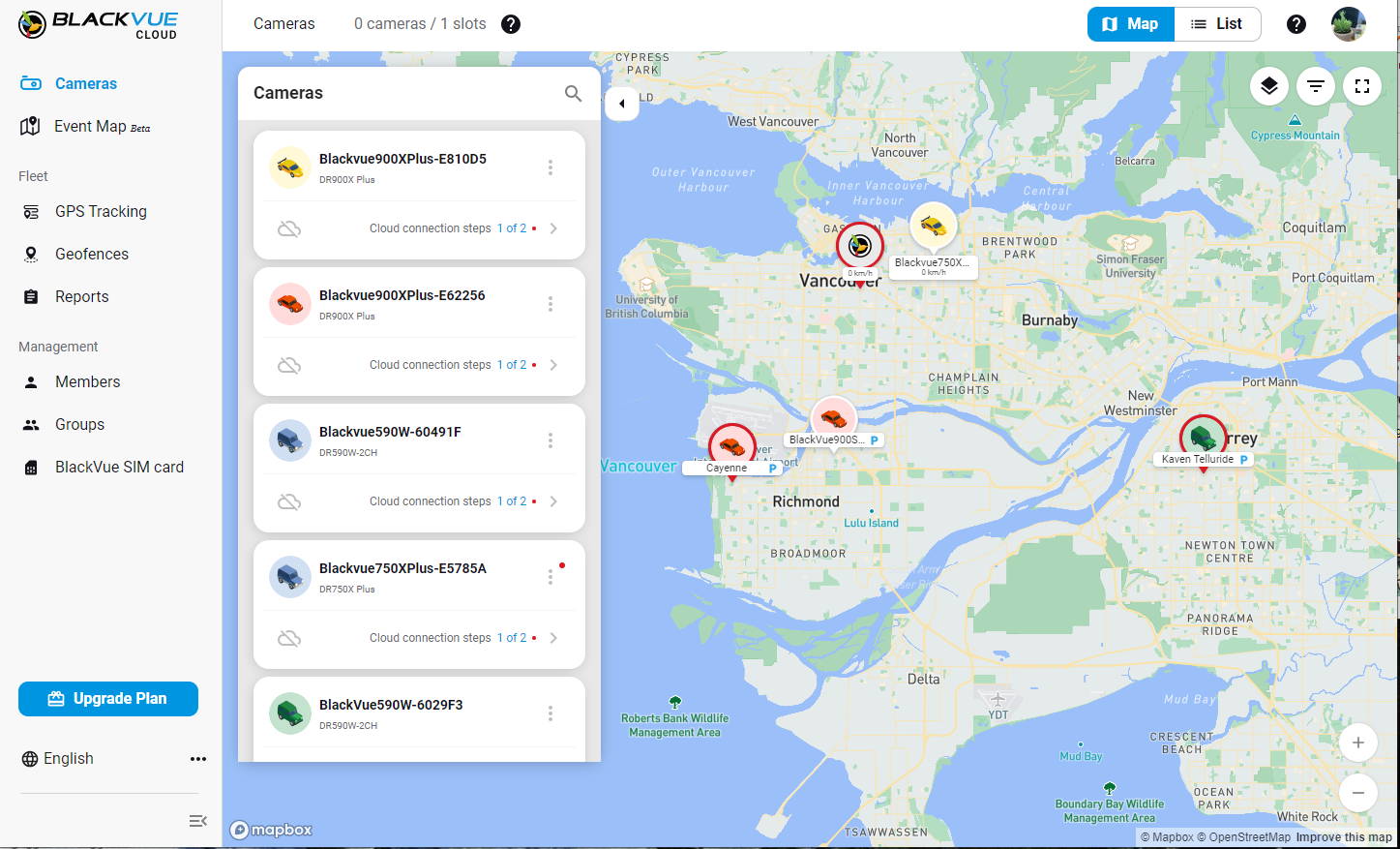
For BlackVue, desktop SD-card playback is separate from browser access. BlackVue now provides its Web Viewer through FLEETA plans. FLEETA remote playback requires a registered, activated camera connected to that service; within that FLEETA playback flow, use the supported nearby app connection when the camera is offline or unregistered.
For background, read our BlackVue web-viewer article. Use the current FLEETA information for present service eligibility and limits. The map image shows an older interface, not a current setup sequence.
3. Copy The Card To A Computer
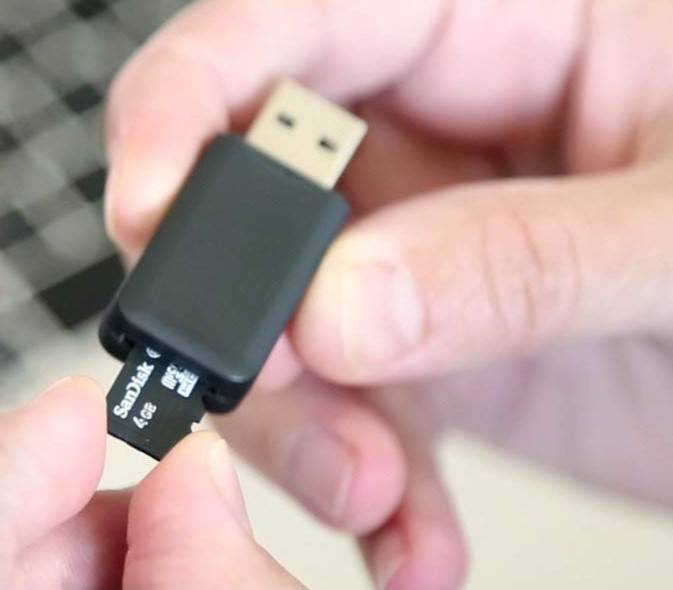
We would use a compatible card reader when the camera has no Wi-Fi, the app is unavailable or you need to copy several files. Once copied, open the recordings with video software that supports them.
- Stop recording, switch the camera off and remove the microSD card as its manual directs.
- Insert the card into a compatible reader and connect it to the computer. If the computer asks to format the card, cancel.
- Copy the needed files into a new folder. Include the relevant channels and adjacent clips, keeping their original filenames.
- Open a copied file with a player that supports its video format and codec. Check the saved copy and keep a second backup of important recordings.
- Safely disconnect the card using the computer's normal procedure. Return it to the camera, resume recording and check a new clip.
Some cameras also offer USB card-reader or mass-storage mode with the correct data cable and camera port. That is model-specific; a charging connection alone does not prove that the computer can read the card.
Compare the viewer options below before choosing software for the copied files.
Use A Card Reader With A Compatible Phone
If you prefer copying straight to your phone, consider a compatible card reader. For iPhone, match the connector, reader and storage format; Files can browse supported attached storage. Android needs a supported USB storage connection and file app. Check playback support too: reading a card does not mean the phone can play every video codec.
If the phone cannot read the card, preserve the original instead of formatting it for the phone. Use a compatible computer or ask for help. See Apple's external-storage guide and Google's USB-storage instructions for supported device steps.
Match The Player To The Camera And Computer
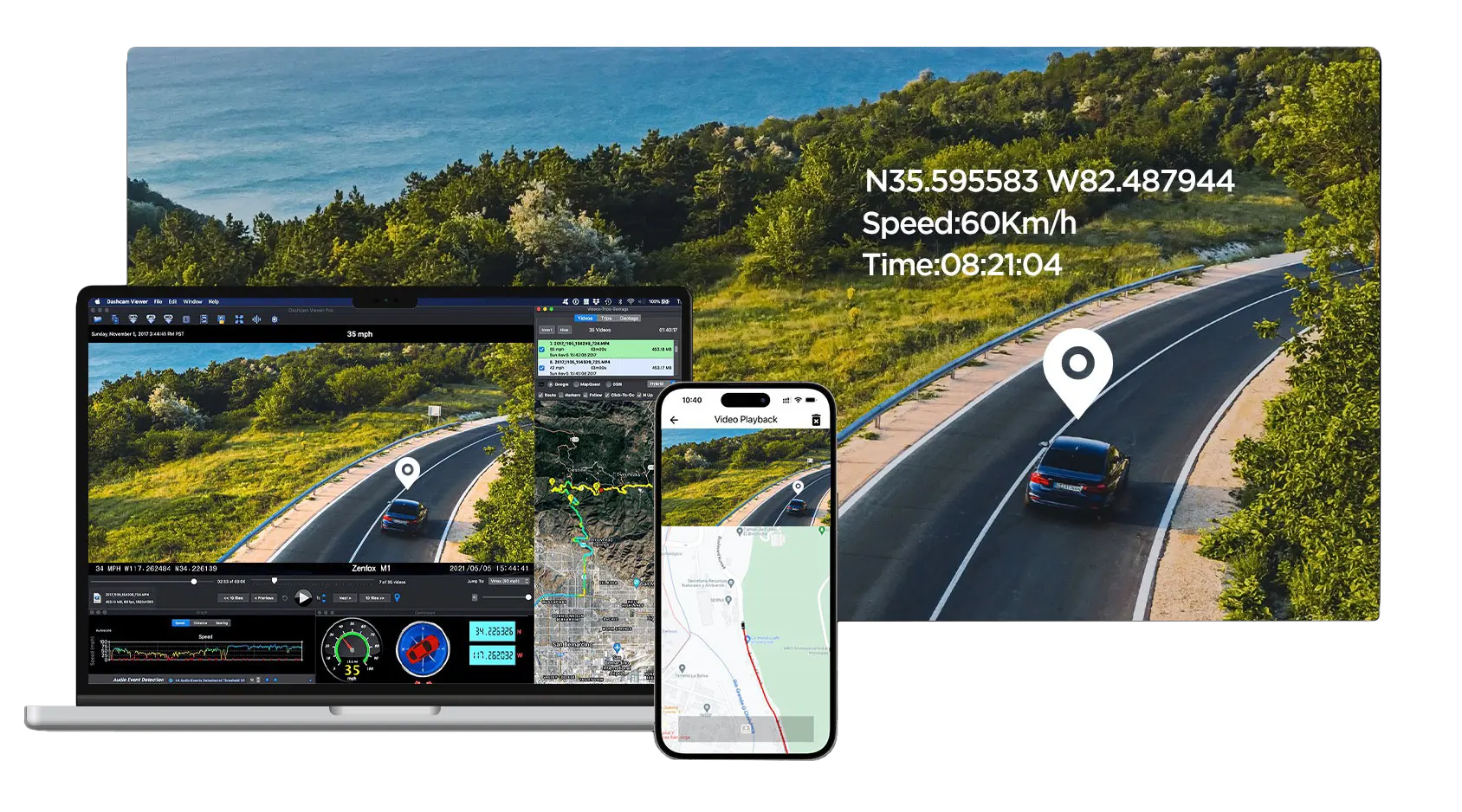
When choosing a player, match both your camera and operating system. We suggest checking whether you need video alone or GPS and other camera data too. A general player may show video without a map; those extra functions need recorded data and compatible software.
On a small screen, swipe the table horizontally to read every column.
| Brand | Local viewing route | Important limit or resource |
|---|---|---|
| VIOFO | The VIOFO app handles nearby camera viewing and downloads. VIOFO Player is a separate desktop tool for supported recorded files and GPS/G-sensor information. | Use VIOFO's app and player downloads and match the camera and computer. VIOFO Player and Dashcam Viewer Pro are separate programs. |
| Thinkware | Dashcam Link provides nearby playback and download/export. Thinkware's legacy PC/Mac Dash Cam Viewer remains a separate option. | Thinkware no longer supports its PC/Mac Dash Cam Viewer. Read the official support notice before relying on a legacy download. |
| BlackVue | BlackVue Viewer opens SD-card recordings on supported Windows or Mac systems. Model and firmware compatibility differ. | Check current BlackVue Viewer compatibility. For ELITE 10, desktop support covers playback and SD-card management; camera settings use the BlackVue app. Browser access is a separate FLEETA service. |
When You Cannot Find Or Open The Clip
On a small screen, swipe the table horizontally to read every column.
| Problem | What to check |
|---|---|
| The event is missing | Check the camera clock, every relevant folder and all connected channels. Older files may already have been overwritten. |
| The app played a clip but it is not in the phone album | Download it, then use the app's export/save action and confirm the local file. App storage and the phone album can be different locations. |
| The computer offers to format the card | Cancel. Preserve the card and seek help before formatting or attempting a repair that changes it. |
| The file copies but will not play | Check the exact file format, codec and player/device support. Test a copy; keep the original unchanged. |
| Video plays without a map | Confirm that GPS data was recorded and the chosen viewer supports the camera's data. A video-only player may not show it. |
| A shared copy looks different | Compare it with the original saved file. Check whether the sharing/export method changed resolution, trimmed the clip or compressed it. |
Footage Viewing Questions
Can I view footage without the dash cam app?
A fitted camera screen can help you locate a clip. A compatible card reader can copy files to a computer or supported phone. Follow the camera's shutdown instructions before removing its card, and check that the receiving device can play the copied file.
Why does the camera Wi-Fi say there is no internet?
A local camera network can connect the phone to the dash cam without providing internet. VIOFO documents this as normal. Stay with the exact model's connection instructions, save the clip locally, then use your normal internet connection when you need to send it.
Why is a downloaded clip missing from my phone's album?
The app may store downloads internally before a separate export saves them to the phone. Thinkware Dashcam Link uses this sequence. Check the app's downloaded files, complete its export step and allow the required storage or photo permissions.
Can I watch the camera from another location?
Nearby camera Wi-Fi alone does not provide remote access. You need a supported connected camera, power, active internet at the vehicle and the required account/service setup. BlackVue browser playback is provided through FLEETA, separately from its local SD-card Viewer.
Model Instructions And Viewing Resources
Use manufacturer instructions for the exact model and app. Thinkware's download and export guide shows the difference between app storage and the phone album. BlackVue's FLEETA playback manual explains connected and offline camera states.
If you are comparing equipment, our dash cam collection guide covers the wider lineup. The A119M Pro listing is a current product reference; the older screen illustrations do not describe its controls.
Get Help Accessing A Recording
Tell us your exact camera model, connected channels and firmware, plus your phone or computer model and operating system, app or player version, card and reader. Include the message you see and whether the file is on the camera, inside an app or copied to another device. The filename and approximate event time can help us narrow down the right place to look.
We’ll help you identify the app, viewer or file-copy method that fits your equipment. Keep the original card and recordings intact while working through a playback problem.
Contact UsDash Cams With App And Card Viewing
Choose a camera around how you want to record and review footage

VIOFO VS1 Mini 2K QHD
Consider this screenless camera if nearby viewing through the VIOFO app suits you. A compatible card reader or supported player gives you another way to copy or review its files.
Shop Now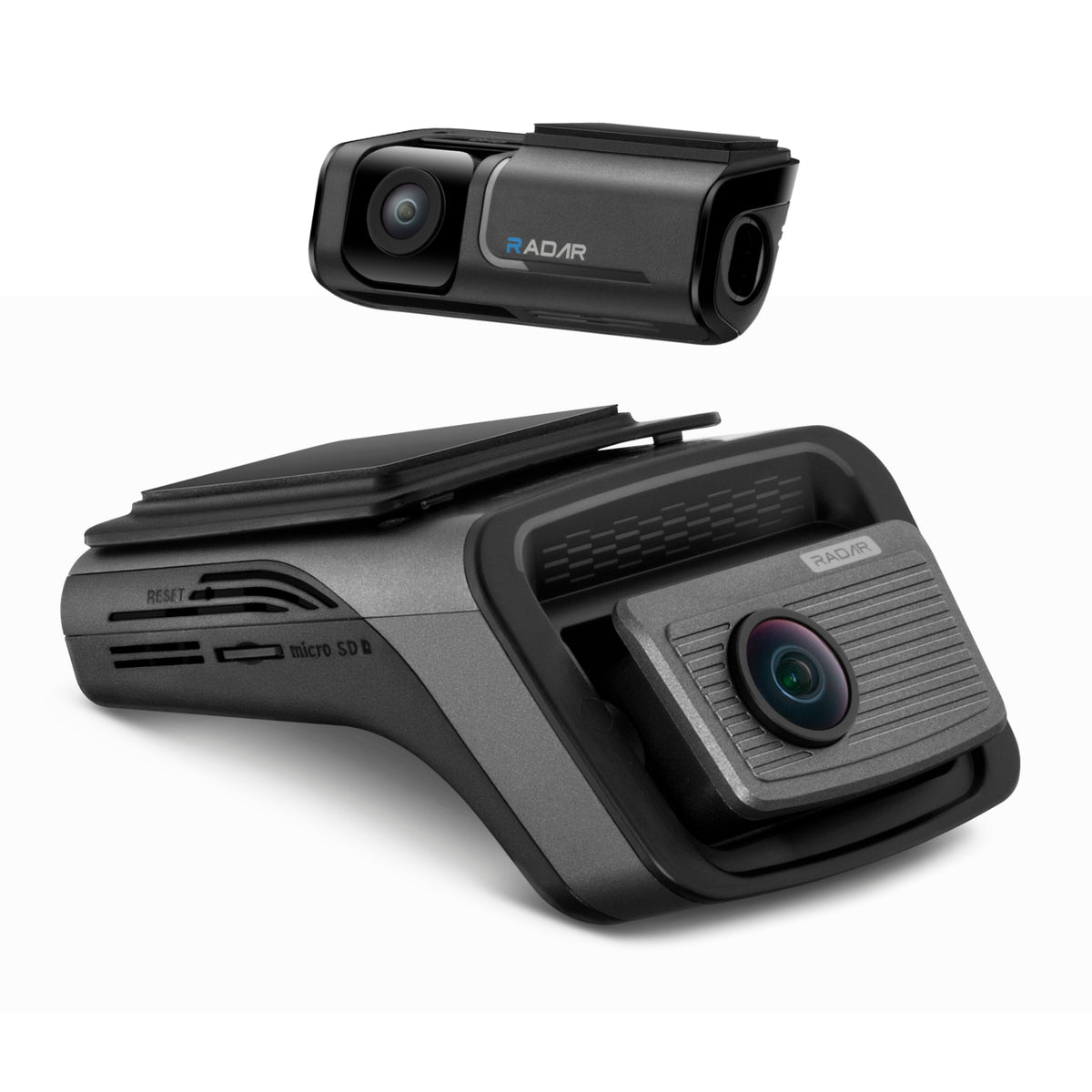
Thinkware U3000 Pro 2CH
Use Dashcam Link for nearby playback and download/export. Remote THINKWARE CONNECTED functions require the optional LTE module and the applicable account and active service; the camera's local Wi-Fi is a separate workflow.
Shop Now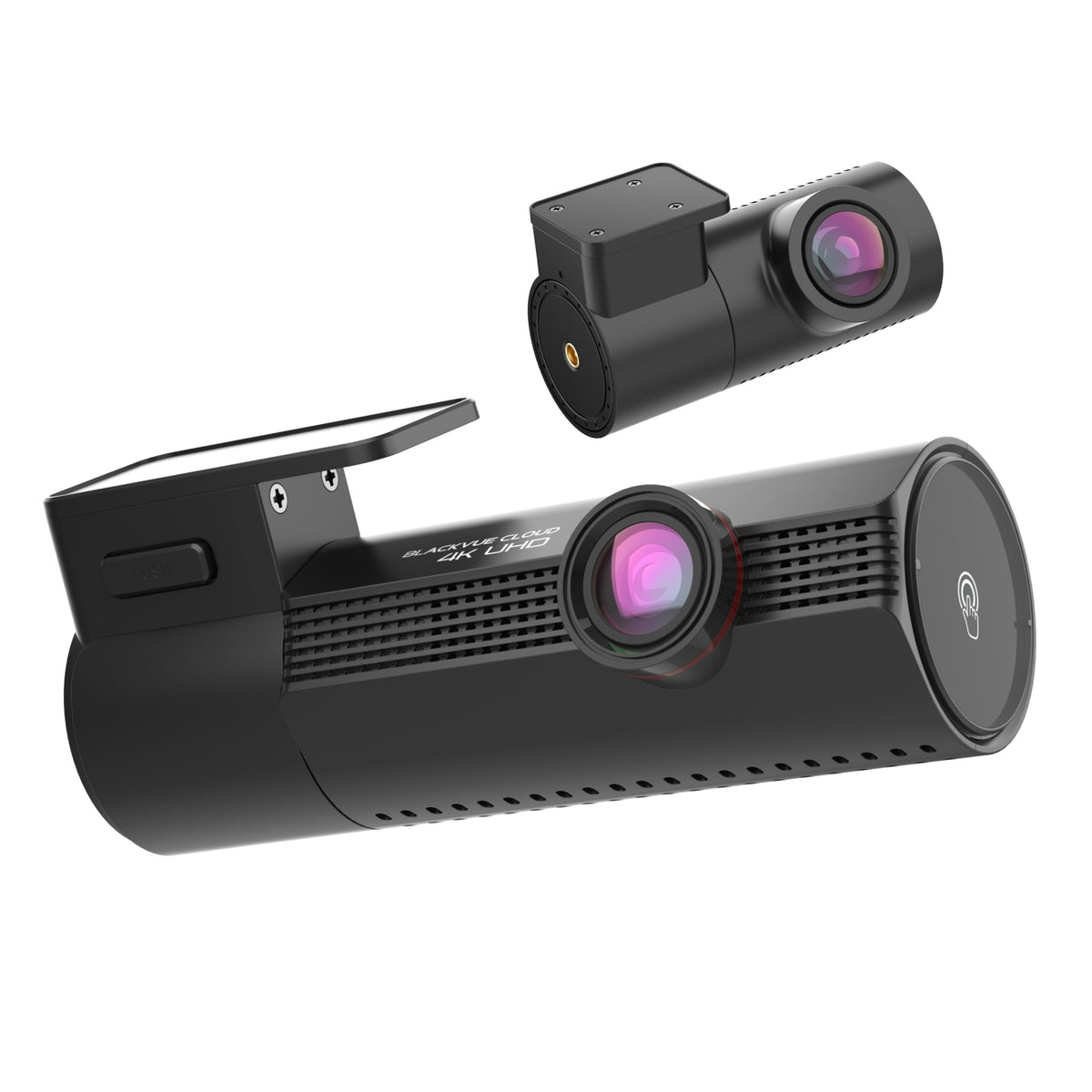
BlackVue Elite 10 2CH
Use supported BlackVue app or desktop SD-card viewing for local recordings. Remote access needs a configured connected service and internet at the vehicle; browser viewing uses FLEETA.
Shop Now