


Why Is My Dash Cam Powering Off by Itself?
Find the right power, card, firmware or heat check for your setup
Start with the symptom
We recommend noting when the camera stops: at startup, while driving or only after parking. Power, a memory-card fault, firmware and heat can produce similar symptoms. Tell us which one you see and how the camera is powered so we can help you choose the next check.

Check the power supply
12V adapter
Make sure the adapter is seated in the vehicle outlet and the power cable is connected securely. If the camera still loses power, test another compatible cable or vehicle outlet. Follow the camera and adapter instructions for any further checks. BlackVue's restart guidance and VIOFO's no-power checks describe model-specific cable and power-source tests.
Inspect the adapter and cable for damage with the equipment disconnected. Stop using a melted, discolored or unreliable connector. Do not assume a weak spring identifies a particular internal failure.
Hardwired power
ACC is the ignition-switched connection, while constant power remains live when the ignition is off. The ground connection and each wire's function depend on the kit. Follow the markings and diagram supplied for your exact hardwire kit; do not identify wires by color alone.
Use the vehicle's fuse diagram and a circuit tester or multimeter to identify the circuits specified by that kit. The original vehicle-circuit fuse and the kit's dash-cam branch fuse have different roles. There is no universal fuse rating for every vehicle and kit, so do not choose a fuse from a generic amperage range. If you cannot confirm the correct circuit or fuse from the exact instructions, stop and ask a qualified installer. Thinkware recommends professional installation because vehicles differ. See the BlackVue HWK-5FT installation guide, VIOFO hardwire-kit instructions and Thinkware hardwiring guidance. For a step-by-step overview, use our hardwiring guide.
Fuses and interrupted power
A fuse can interrupt power if it has blown, but its location and rating depend on the adapter, hardwire kit and vehicle. Follow the exact instructions before opening an adapter or checking an inline fuse. If a fuse blows again, stop and have the fault checked. Our recommendation is to use a qualified installer whenever the specified circuit, fuse or ground is uncertain.

Check the microSD card
A memory-card problem can cause recording errors or restarts. Back up footage you want to keep before formatting, then follow the instructions for the exact camera and card. A failed format does not by itself prove that a card is write-protected or permanently damaged. If the maker's recommended test still fails, follow its replacement or support guidance.

Formatting advice differs by brand. VIOFO recommends formatting at least monthly in its support guidance. Thinkware's support article gives a typical six-month-to-one-year lifespan for microSD cards with regular formatting. These are separate manufacturer statements, not a universal schedule or lifespan for every dash-cam card. Check the guidance for your camera and card before choosing a format interval. Read our microSD card guide, VIOFO formatting instructions and Thinkware memory-card guidance.
We suggest keeping a compatible spare card for a controlled test only when the manufacturer recommends that check. Preserve the original if footage matters. A freshly formatted card still needs a new recording and playback check.

Check firmware and system errors
Check the manufacturer's support page for your exact camera model. Install firmware only when the maker lists it for that model, and follow its instructions. Some manufacturer troubleshooting steps also cover resetting the camera or disconnecting accessories; use those steps only when the model's support guidance calls for them. You can start with our firmware, viewer and manual page, BlackVue restart guidance, VIOFO no-power checks or Thinkware system-error steps.
Record the installed firmware and full model/suffix before downloading. Back up wanted recordings and keep the required power connection stable during an update. Recheck settings and a saved test clip afterward.

Check for heat-related shutdowns
VIOFO says high heat can stop recording or shut down its cameras. Operating limits and protection behavior depend on the model, so check the specifications and heat guidance for your camera. Choose a camera for its stated operating temperature range rather than its power-storage type alone. Follow the maker's installation and temperature guidance. See VIOFO's heat guidance and our dash cams for high-heat environments guide.
Let the camera cool before handling it and follow its mounting instructions. If shutdowns return within the stated operating conditions, send support the model and circumstances rather than assuming another camera will solve the installation problem.

The cameras shown in this guide
The DR970X-2CH Plus and A229 Pro Duo are the two model references here. We recommend diagnosing the power or card problem before choosing different hardware. For a current purchase, confirm the camera, channels and power accessories match your needs with our team.
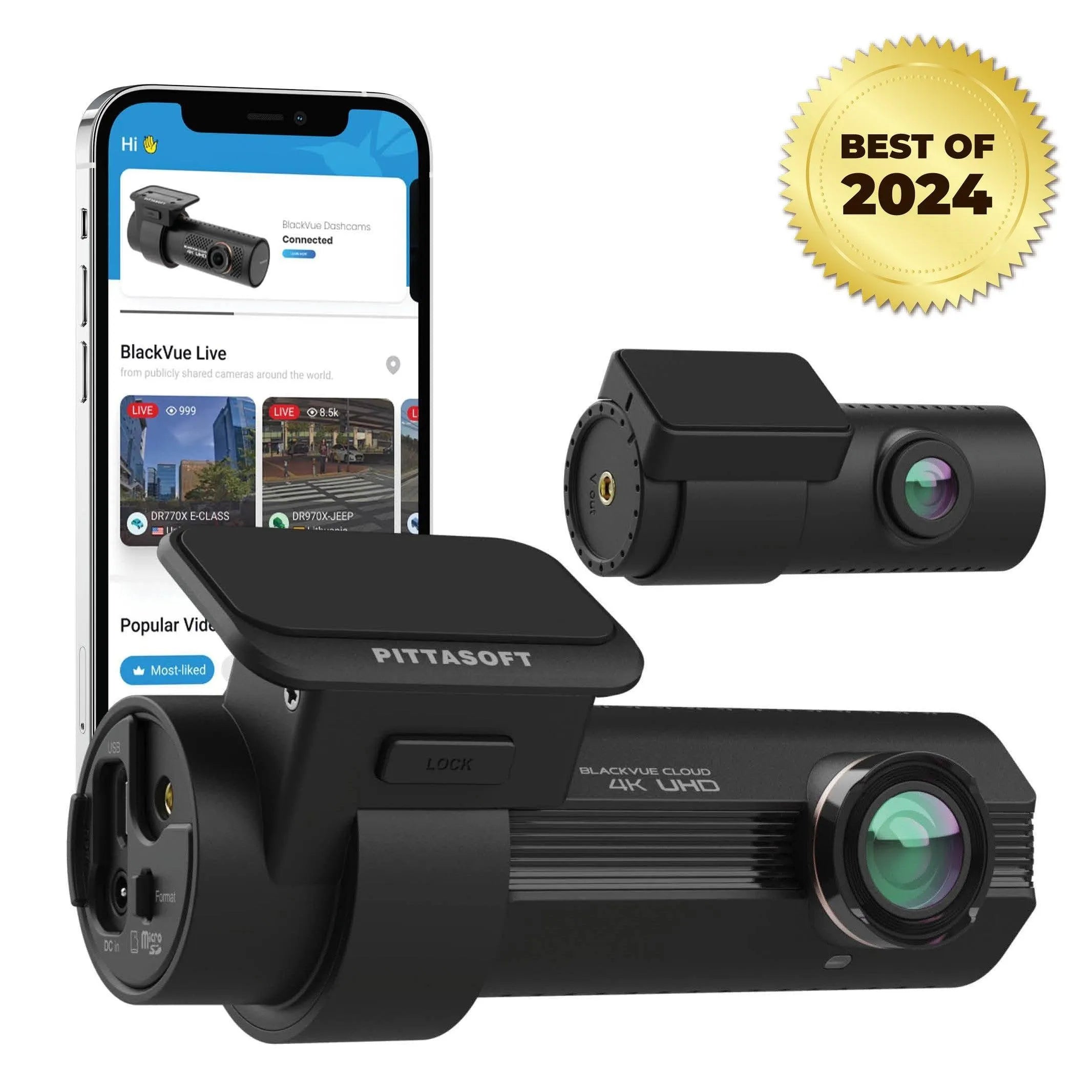
If you own this model, ask us about its power setup and troubleshooting. We can help identify the exact generation before recommending an accessory.
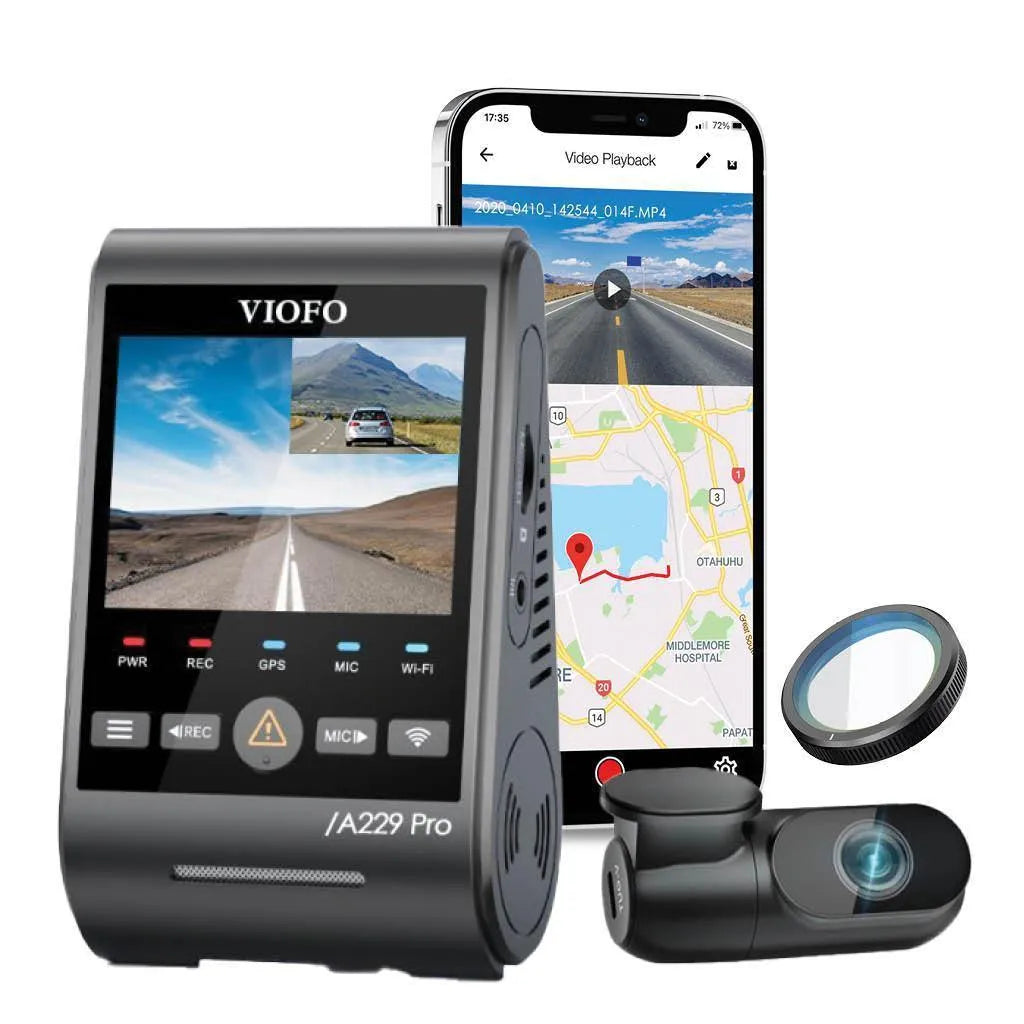
When to contact support
If the camera still shuts off after the checks in its manual, contact the manufacturer or BlackboxMyCar support. Include the exact camera model, card brand/capacity, firmware and how it is powered. Tell us whether it fails to start, restarts or stops recording, and whether this happens while driving or parked. We can help narrow the next check so you can return to recording with confidence.
Get Help With Your Setup