


BlackVue DR750S-2CH Direct Wi-Fi Guide
Connect locally and keep the footage you need
Direct Wi-Fi and Cloud are separate
We recommend setting up local Wi-Fi and saving a short recording to your phone before changing camera settings. That gives you a way to check footage and keep a copy when you need it.
Direct Wi-Fi connects a nearby phone to the DR750S-2CH. It does not need cellular data for the camera-to-phone connection. BlackVue Cloud uses a separate internet connection for remote features. Your phone can show a no-internet warning while it is connected locally to the camera. Explore current BlackVue cameras.
This guide is for the original DR750S-2CH. It does not support Seamless Pairing. The older app screenshots below remain useful references, but follow the current app prompts for registration and access.
Find the camera’s Wi-Fi credentials
The DR750S uses device-specific Wi-Fi credentials. Use the SSID and password printed on the camera or its packaging rather than assuming an older BlackVue’s shared password will work.
The exact-model manual locates the label on the front camera. Park safely, disconnect the cables and remove the camera from its mount to read it, then reconnect it for setup. Keep the password and Cloud code private.
If you are moving from a DR650S, check the DR750S label and verify a file transfer rather than assuming the same password or transfer time.

Add the DR750S to the BlackVue app
- Power the camera and enable its Wi-Fi. A single press of its Wi-Fi/Format button toggles Wi-Fi.
- In the BlackVue app, choose + Camera, then Manually (Wi-Fi).
- Open the phone’s Wi-Fi settings, select the camera’s SSID and enter its password.
- Follow the registration prompts. BlackVue’s current instructions say to reconnect the phone to internet Wi-Fi before returning to the app.
Use BlackVue’s manual-registration instructions if the screens differ. The DR750S is specifically excluded from Seamless Pairing, so Bluetooth pairing or a newer model’s touch-to-register sequence is not the route for this camera.

Reconnect, play and keep a recording
For later access, select the saved camera through the app’s Connect to camera menu and accept the prompt to join its Wi-Fi. BlackVue’s direct-connection guidance distinguishes this from the first registration.
Open the recording list, choose the recording type and front or rear view you need, and play a file. The original manual also documents Live View and copying files to phone memory. The old app called the copy command Copy to Internal Memory; use the equivalent download or save control in your installed app.
Open the saved copy before deleting or formatting anything. Save both views of an incident. A file still being streamed from the camera is not the same as a separate copy on your phone.
Afterward, leave the camera network when you need normal phone internet. BlackVue suggests forgetting that network after adding the camera if the phone otherwise stays connected.
Before changing camera settings
Open the camera’s settings while connected locally and note its firmware version. The image shows the original settings categories, not an update procedure.
Back up important recordings before changing time, resolution, image quality or video segment length. The DR750S-2CH manual warns that saving these changes formats the card and deletes recordings, including locked events.
Apply changes with the app’s save control and allow the camera to restart when prompted. Reconnect if the session closes, then check an actual recording. Use the exact DR750S-2CH manual for the options available to your camera.

Set time, recording quality and event protection
Start with the correct time zone and daylight-saving choice, then check the timestamp. Choose km/h, MPH or no speed display for your preference.
The model manual includes 1080P FHD at 60 FPS in front and 30 FPS behind. In that mode, Highest quality and one-minute files are fixed. Treat it as a documented choice, not proof of the current default. Enhanced night vision and separate front/rear brightness adjustments are available; compare saved night clips before keeping a change.
We would enable Lock event files when you want impact and manual clips protected from ordinary loop replacement. The manual’s limit is 50 locked files. Review and copy them regularly, then choose whether to let the oldest locked files be overwritten when full. A locked partition is not permanent storage.

Adjust driving impacts and parking motion separately
Use an unwanted saved event to decide what to change. Driving G-sensor sensitivity, parking G-sensor sensitivity and parking motion detection serve different jobs. We would reduce driving sensitivity gradually only after checking whether rough roads or another routine movement caused the events.
For parking motion, consider passing traffic, wind and rain. If you want impact-triggered parking clips without motion clips, confirm the motion-off choice in your installed firmware and verify the result. Do not assume a zero shown in an old screenshot has the same effect in every menu.
There is no single sensitivity value that prevents every unwanted event while detecting every impact. Check the saved result after each adjustment.

Choose lights, manual recording and announcements
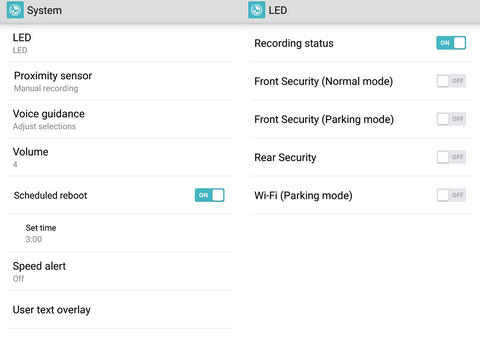
We would keep the recording-status light visible during setup. Security lights and the Wi-Fi light have separate preferences. A disabled light does not prove recording has stopped.
The DR750S proximity sensor can switch audio recording on or off, or trigger a manual recording, depending on its assigned function. Choose manual recording if you want a quick way to mark a clip, then check the saved result while parked. This is separate from the Wi-Fi/Format button.
Choose voice announcements and volume you can understand. The scheduled reboot function is configurable: the manual describes a daily restart in parking mode at the selected time, skipped if recording. It lists 03:00 as the default time; that does not establish that reboot is enabled on your camera.
Wi-Fi credentials, hotspots and Cloud preferences
You can change the camera’s SSID and Wi-Fi password in its login settings. Keep a record of the new credentials before ending the connection.
For remote Cloud access, the camera needs its own internet route, such as an appropriate Wi-Fi hotspot, and the relevant account setup. The DR750S manual specifies 2.4 GHz networks and excludes 5 GHz. Check current service requirements before buying a hotspot or data plan; local phone access does not establish remote access.
Review hotspot and notification preferences if you use Cloud. If you do not use it, the manual permits disabling Cloud and then adjusting Wi-Fi auto-off. Its documented auto-off option switches inactive Wi-Fi off after ten minutes. Turning Wi-Fi off can reduce power use, but we would not promise a fixed increase in parking hours.
Parking recording still needs an appropriate continuous power installation. For a dedicated battery setup, ask us about our PowerCell 8 and the correct connection for the DR750S. We would check the installation and driving pattern before estimating coverage.

Reset Wi-Fi without accidentally formatting the card
Formatting erases recordings, including locked clips. Copy anything important first. A credential reset and a card format use the same physical button but different follow-up actions.
Swipe the table sideways on a small screen to read both columns.
| Purpose | Action |
|---|---|
| Toggle Wi-Fi | Press once. |
| Restore default Wi-Fi credentials | Hold about five seconds until the voice instructions begin, release, then press once. |
| Format the card | At the voice instructions, release after the first five-second hold, then hold for another five seconds to format. Use this only when you intend to erase the card. |
Follow the exact-model manual’s button instructions and BlackVue’s button reference. A Wi-Fi reset restores the camera’s labelled defaults, not a universal password.
Questions about connecting and saving footage
Why does my phone say there is no internet?
The camera’s direct Wi-Fi is a local connection. On Android, keep the camera network connected when the system asks whether to stay without internet. BlackVue’s Android connection guide explains that network switching can otherwise break local access. Leave the camera network afterward to restore your usual connection.
The phone joins Wi-Fi, but the app cannot open the camera. What should I check?
Confirm the camera SSID, Wi-Fi state and saved password first. Then review the app’s requested network and file permissions and whether the phone switched networks. BlackVue’s Android and iOS guidance covers platform differences. Send our team the exact phone, OS, app and camera firmware versions if it continues.
Why can I play a clip but not save it?
Check the app’s media or file-access permission and the download result in phone storage. Open the saved file independently before removing the camera copy. The old screenshots do not establish the exact button names in your current app.
Does a Wi-Fi reset protect my incident footage?
A Wi-Fi credential reset is different from a format, but back up important files before troubleshooting with the combined button. Event locking also has a capacity and overwrite policy. Keep a separate copy rather than relying on a lock icon.
Get help with your DR750S connection
Tell us the full camera model and firmware, phone model and OS, app version, and whether the camera SSID appears in Wi-Fi settings. Include the error message and whether you can play or save a clip. Keep passwords, Cloud codes and private footage out of public screenshots.
Get help with DR750S Wi-FiFor model instructions, use the DR750S-2CH manual. To compare newer options, explore current BlackVue cameras.