






Everything you need to know about setting up your VIOFO dash cam

Everything you need to know about setting up your VIOFO dash cam
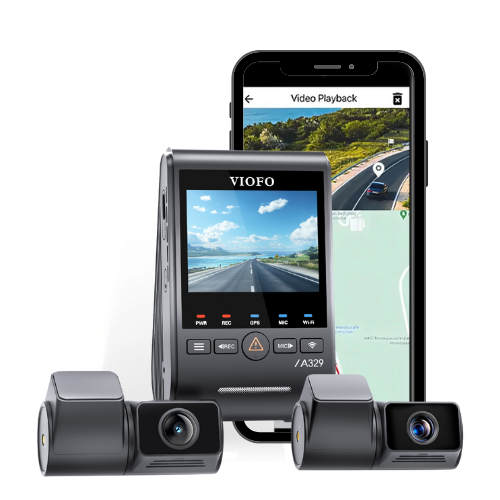
Whether you’re purchasing fresh Wi-Fi-equipped VIOFO models like the A119M Pro or the A329 series, or the older A119 Mini Series, A129 Series, and A229 series, you automatically get access to their dedicated VIOFO mobile app.
While some models have built-in LCD screens that can display your footage, the VIOFO mobile app makes it easier for you to conveniently stream and download from your phone, while also navigating the extensive menu of customizations and settings, and allowing you to update your dash cam’s firmware with the touch of a button.
In this article, we will go over the steps on how to connect to the VIOFO app, how it works, and provide some quick resolutions for the common app issues you may encounter.
The VIOFO app is only compatible with Wi-Fi-equipped dash cams, meaning it will not work with non-Wi-Fi models like the A119 V3. Newer models feature dual-band 2.4GHz and 5GHz, or, in the case of the A329 series, Wi-Fi 6, which enables faster performance and connections. To connect to the VIOFO smartphone app, follow the steps below.
First thing to do is to make sure you have the app on your phone. The VIOFO dash cam smartphone app is available on the Google Play and iOS App Stores.
Once you have downloaded the app, make sure to keep it up to date (we recommend enabling automatic updates) so you can be the first to enjoy new additions and improvements as soon as they’re released.
The next step is to enable Wi-Fi connectivity.
This step may vary depending on the VIOFO model you’re using. On the majority of VIOFO’s Wi-Fi-equipped models, you can press or hold the Wi-Fi button on the face of your device directly (the specific interaction will vary depending on your specific model).
For VIOFO A129 models, the Wi-Fi button is two interlocking squares in the same spot on the camera instead. With these, you must hold that button to turn on the Wi-Fi.
Once your device's Wi-Fi is turned on, the dash cam screen should display a Wi-Fi symbol, indicating that you did everything correctly. The Wi-Fi LED should also light up, and the network name and password should appear on the screen.
Next, launch the VIOFO app on your smartphone and allow all permissions it requests. Denying any permissions could prevent the app from functioning as intended.
To connect, tap “Connect New Device”. Select your dash cam model, then follow the on-screen prompts to go to the Wi-Fi settings on your device, look for the Wi-Fi name “VIOFO_model name_XXXX” or “5G_VIOFO_model name_XXXX”, and enter the password. The default password for all VIOFO models is “12345678”.
Make sure that your device properly connects to the dash cam. If you’re using wireless Android Auto or CarPlay, always ensure it is disabled first so the dash cam can connect to other Wi-Fi devices or networks, such as the dash cam. Additionally, many Android devices may display a pop-up, asking you to confirm the Wi-Fi connection as it does not provide internet, so ensure this is also done.
The Wi-fi connection has a range of approximately 33 feet/10 metres.
Once you’ve verified that your device is connected to the dash cam’s Wi-Fi, return to the app. You’ll know that the connection is successful if the dash cam appears in the app and is showing as “Connected”. If you would like to connect to a different dash cam, simply tap “Connect Other Devices” and repeat the process.
If you tap “Enter Dashcam”, you will get real-time access to what your VIOFO dash cam is currently seeing. This is particularly useful during installation, particularly if you’re installing a rear camera or a screenless model like the VS1, as you can use it to achieve the perfect position and angle. Even if your front camera has a built-in screen, this will still provide you with a higher-quality image on a much larger display.
During live view, you can use the on-screen controls to enable split-screen view, switch between camera angles, toggle the microphone, enter settings, rotate to landscape mode, open the gallery, start/stop recording, or take photos.
While in the live view interface, tapping the File Management button to the left of the start/stop recording button will open the gallery. By default, this will show files currently stored on the dash cam’s memory card or solid-state drive, depending on what it’s recording to. You can access other storage locations by tapping on the header at the top of the screen.
In any given storage location, you’ll always be able to access all files, locked files only, parking files only, or photos only to quickly locate the footage you need. Additionally, each individual file will always be sorted by date and time. You can either view files from all directions at once or specific directions only, and you can tap the calendar icon in the bottom right to view recordings from specific dates only.
Recordings from telephoto cameras are categorized under “Front”. Dates with available footage on the calendar are marked with red dots.
While playing back footage, the app will automatically display GPS data (if available) with route tracking, and you can download, delete, or share the clip directly from your device. You can also manage multiple files at once by tapping the selection button in the top right.
Even when your dash cam is not connected, you can still access downloaded files by tapping on the “Album” button in the bottom left corner of the app’s home screen.
In the live view interface, you can also manage your dash cam’s settings by tapping the gear icon in the top right corner. Here, you can adjust settings like resolution, WDR/HDR, parking mode, loop recording time, G-sensor sensitivity, and more directly from your smartphone.
Settings may vary depending on your specific VIOFO model, so we recommend referring to your dash cam’s owner’s manual for a more detailed explanation of each setting.
Once your dash cam is connected and your device is online via cellular data, a pop-up may appear if a firmware update is available: "New firmware detected. Would you like to download and update?" It will show details about the update, such as the version number, file size, and what it changes or fixes.
To start the update, simply tap “OK”. The update will be transferred to the dash cam over Wi-Fi and installed automatically. The dash cam will then restart to complete the process.
If this is the case, the app’s permissions may not have fully been enabled. To fix this, simply access the settings for the VIOFO app on your smartphone and make sure the required permissions are enabled.
On iOS, these are Location, Photos, Bluetooth, Local Network, and Wireless Data; labelling may vary on Android depending on your device’s manufacturer. You may also uninstall and reinstall the app, ensuring you enable all permissions when setting it up for a second time.
Some users may encounter a blank live-view screen. If this happens to you, try turning off cellular data or switching to airplane mode before connecting to the dash cam, then re-enabling cellular data or turning off airplane mode for a network refresh, and it should be fine from there.
Moreover, another solution is to double-check if you have updated to the latest version of the VIOFO mobile app, and that the dash cam has been updated to the latest firmware. If not, please do so, then try the above workaround again.
You can always review the footage on the built-in screen (if equipped) or disconnect/remove the storage media to review it on a Mac or PC. Most VIOFO cameras also ship with a short USB power cable, which can be used to connect the camera directly to the computer, sending the camera into reader mode with all footage viewable through the computer, the same as if you connected the storage media directly.
For general playback, we recommend using VLC, which can be downloaded for free here on Mac, Linux, and Windows. If you would like to view more information, such as GPS data, on your computer, VIOFO does not have its own desktop software, but third-party programs like Dashcam Viewer are available.
Don’t worry, our in-house product experts are here for you. We have spent years curating helpful content and video guides, helping customers with their dash cams, but we understand that you may need further assistance. Contact us, and we'll get back to you as soon as we can. Whether you need an informed purchasing decision or post-purchase support, we're here to help.
The VIOFO app is compatible with all VIOFO dash cams.
Check out our VIOFO collection to know more about these fully capable and smart dash cams.
placeholder