



3 Ways to View Dash Cam Footage
Learn how to review dash cam recordings on a phone, computer or compatible desktop viewer.
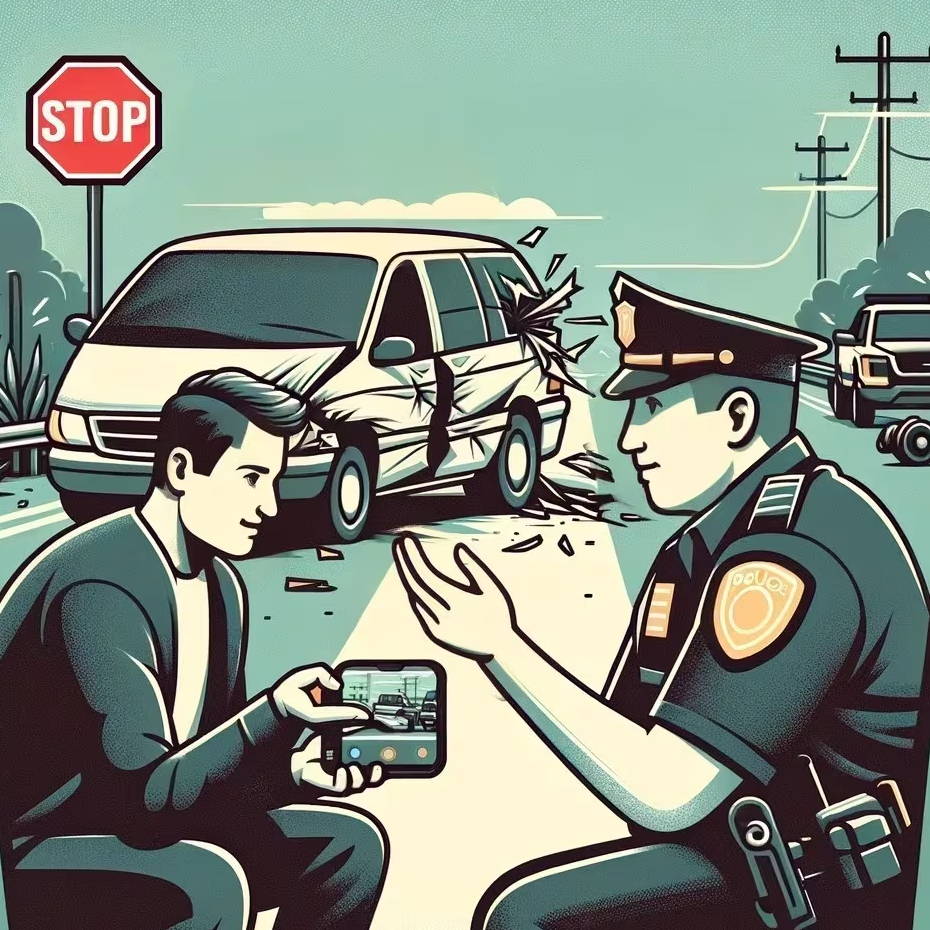
Imagine this: you're having a great time driving on the road until… an accident happens right in front of you. Sure, you've recorded the entire incident on your dash cam, but you need to make sure the video goes to the right place, accessible, whether for insurance claims, social media sharing, or personal reference.
There are different ways to retrieve these videos, and in this article, we will go over the different methods for streaming your dash cam footage, ensuring that you're ready for the unexpected on the road.
1. Replay Footage on the Dash Cam Display
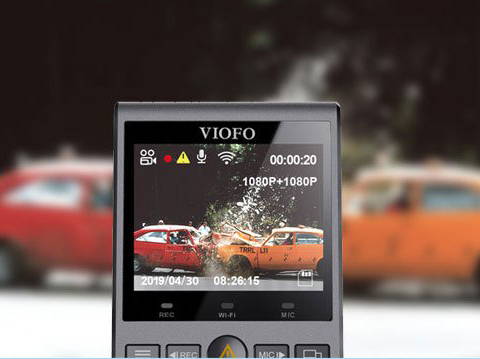
When the unexpected occurs, the last thing you want is to fumble with complicated settings, right? One of the simplest ways to review your dash cam footage is by replaying it directly on the device's display. Dash cams with built-in displays allow you to access and replay footage right at the scene quickly.
How to view Dash Cam Footage on the Display Screen
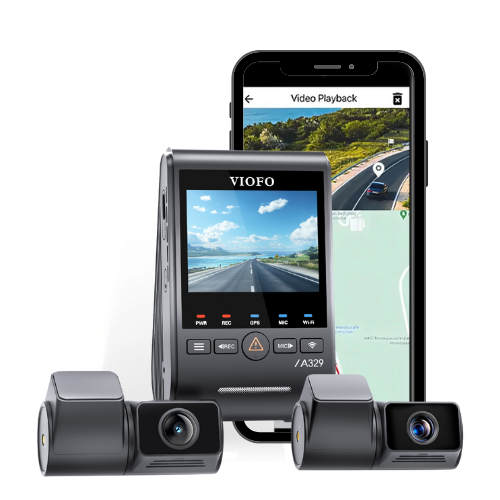
Dash cams with display screens like the VIOFO A119M Pro, or the legacy VIOFO A129 Plus (see the current VIOFO A119M Pro) come with a dedicated playback option in their menu. To view footage, simply scroll through the list of recorded videos and select the one you want to review.
Just press the play or view button to start watching the selected video. Once you find the video you need, you can frequently lock the video, ensuring it’s stored safely for when you want to view it on another device.
Unlike other methods that might require connecting to a computer or smartphone, with this one you only need your cam. With this, you can swiftly confirm the sequence of events and details of an accident, particularly helpful in immediate disputes.
2. How to Retrieve Dash Cam Footage on a Dedicated Mobile App
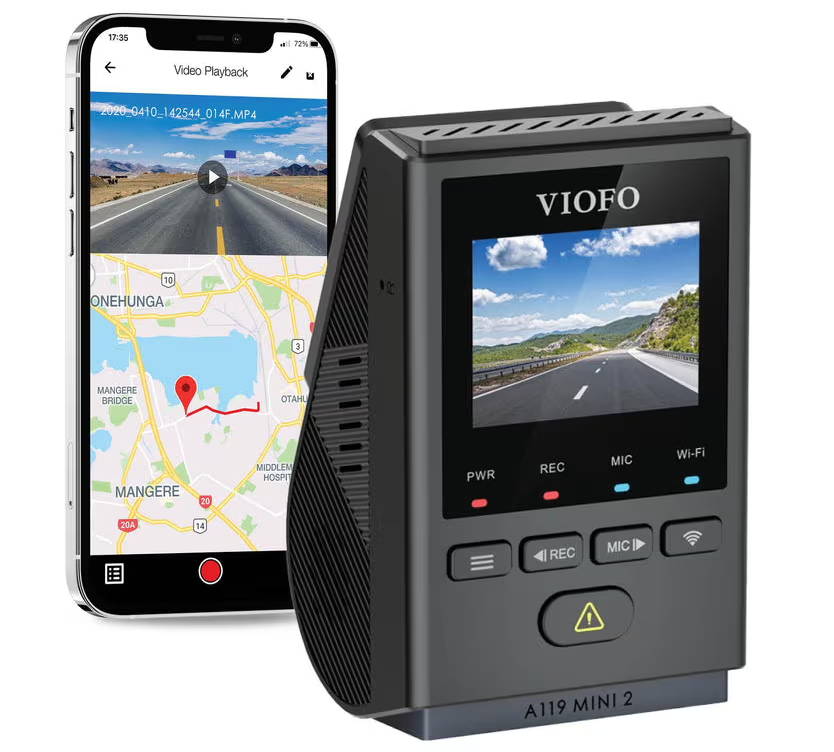
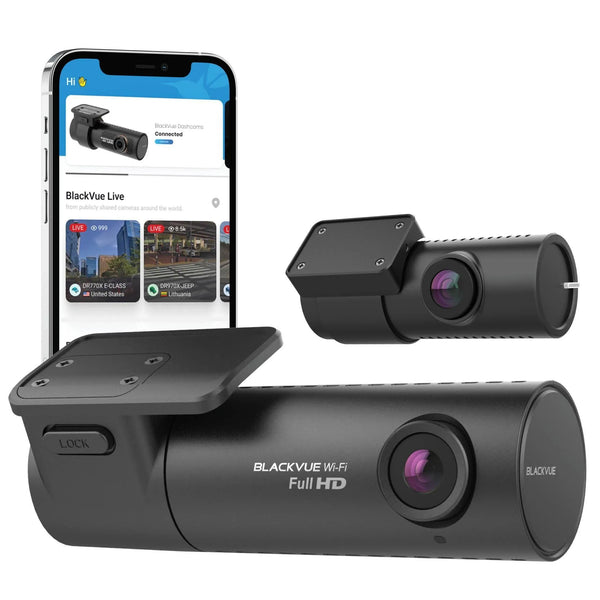
Many modern dash cams aren’t only reliant on a screen. Instead, they have built-in wifi that your phone can connect to, allowing you to download and share footage easily.
When retrieving footage from your mobile app, the first thing to do is to search and download your dash cam’s app from the app store.
Next, connect your smartphone to the camera’s wifi. Some cameras will have a wifi button that will need to be pressed to turn it on, some will leave the wifi always-on.
Once connected, you can access your dash cam's full video library through the app in seconds. Simply select the video you want to watch and use the app to stream the footage directly on your mobile phone. This streaming is seamless and quick, but you are also able to download video files to share with others through email or messaging apps easily.
Compared to viewing footage on the dash camera’s display, dash cam apps are designed to be intuitive, making it easy for anyone to navigate their features and retrieve specific video clips. Moreover, sharing footage with law enforcement, insurance companies, or friends and family is a breeze through this platform.
3. Retrieve Dash Cam Footage via Computer
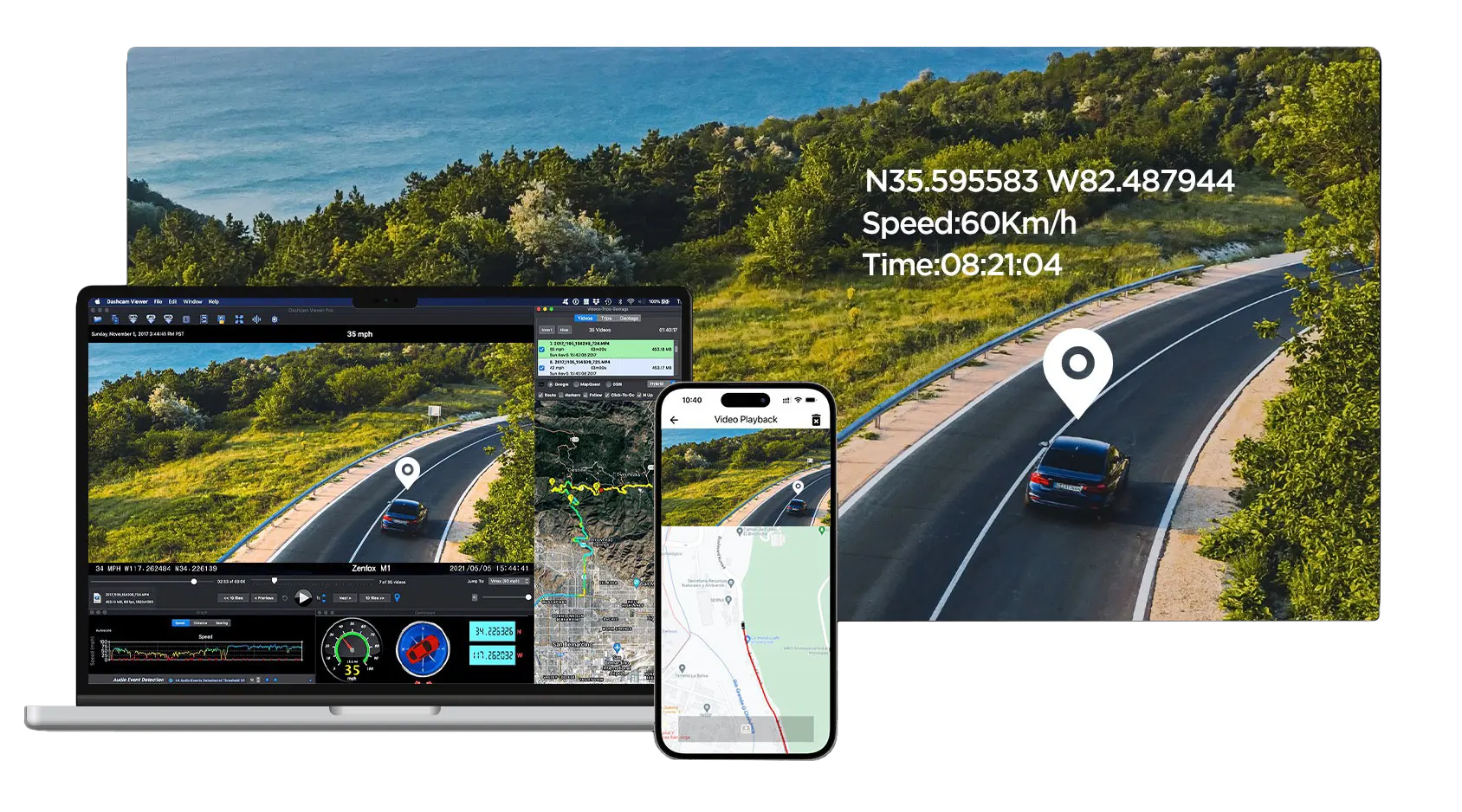
When you want to review footage on a larger screen, many dash cam brands provide a dedicated PC or Mac viewer. These programs are available from the manufacturer and can be updated as new versions are released. See our dash cam footage viewing guide for the available options.
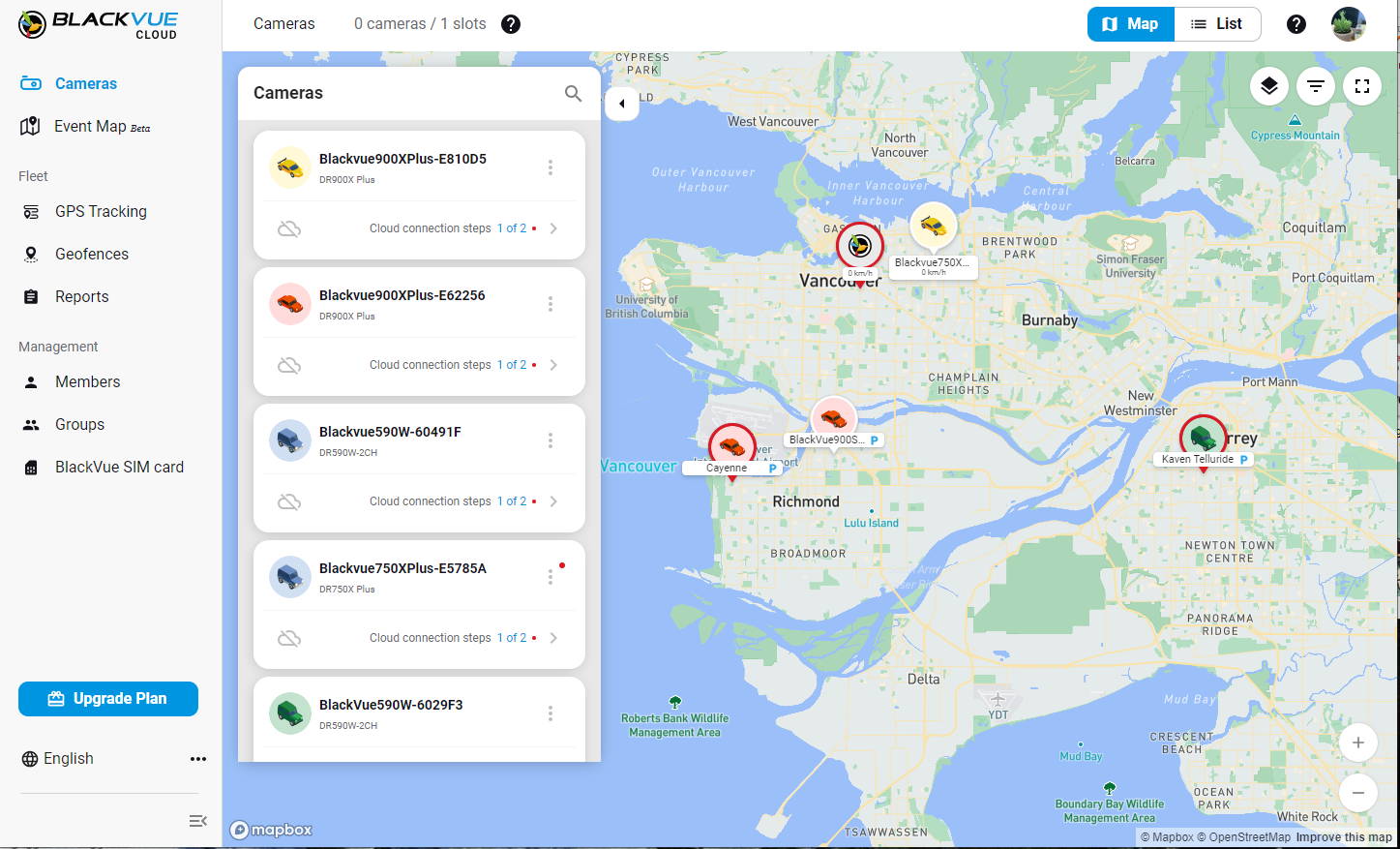
BlackVue leads the way with the most advanced Desktop Viewer, featuring a detailed map of active vehicles in your community, and the ability to easily share footage in a straightforward app. It includes a launcher that gives you access to the SD Card Viewer and the Cloud Web Viewer. Learn more about the BlackVue Web Viewer here.
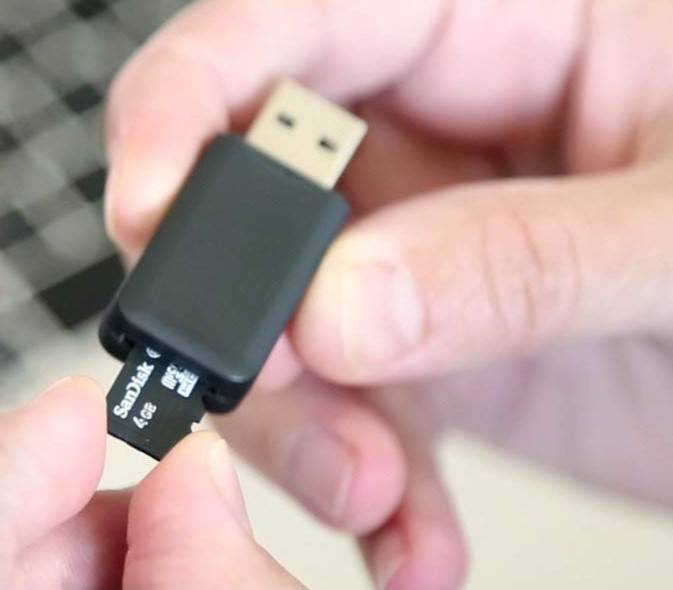
To connect your SD card to a computer, use an SD card reader/adapter. These allow you to connect an SD card either to a standard USB slot, or a dedicated SD card adapter reader slot.
Discover Wifi-enabled dash cams with Desktop Viewers
In the heart of the moment, when an accident or extraordinary event happens, your dash cam becomes your witness. Retrieving dash cam footage is something drivers like you should know, as it serves beyond visuals - they provide impartial evidence in accidents, aids in legal disputes, protects against fraud, and assists in identifying perpetrators of road incidents - all for your safety and security.
Nearly all of our cameras have built-in wifi, and a compatible desktop viewer that it works with. Find the right dash cam for you here.
Dash Cams with Modern Viewing Options
These current systems support app-based viewing and make useful reference points when choosing a footage-review workflow.

VIOFO VS1 Mini 2K
Best for simple app-based viewing. A compact screen-free dash cam controlled through its mobile app.
Why it fits: It suits drivers who prefer quick access from a phone.
Shop now
Thinkware U3000 Pro 2CH
Best for connected viewing and parking features. A premium front-and-rear system with app and connected functions.
Why it fits: It is a strong option when viewing and parked-vehicle alerts both matter.
Shop now
BlackVue Elite 10 2CH
Best for cloud-connected footage access. A current 4K HDR system with remote-access features.
Why it fits: It fits drivers who want to review footage beyond a local memory-card workflow.
Shop nowNeed Help Accessing Your Footage?
Contact our support team with your dash cam model and viewing device. We can point you to the correct app, viewer or memory-card workflow.
Contact Us